
How to make a personal website in 30 minutes
As academics, most of us would be more than happy to let our work speak for itself. But, in today’s job market, we need to sell ourselves more than ever. One of the best ways to do this is through a personal website.
If you prefer to follow slides instead of this article, the slides are here.
Personal Website Examples
Before creating your own personal website, I find it very helpful to get inspiration from how others have designed their own websites. Here are some that I love!
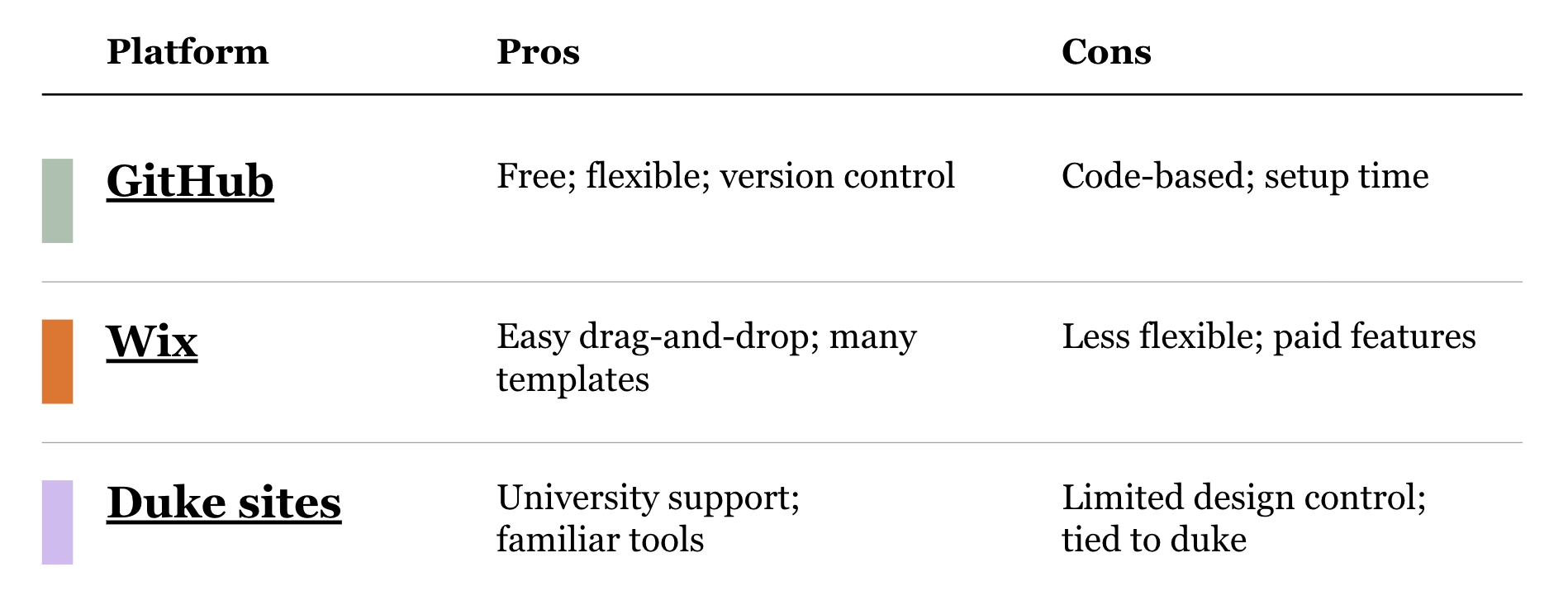
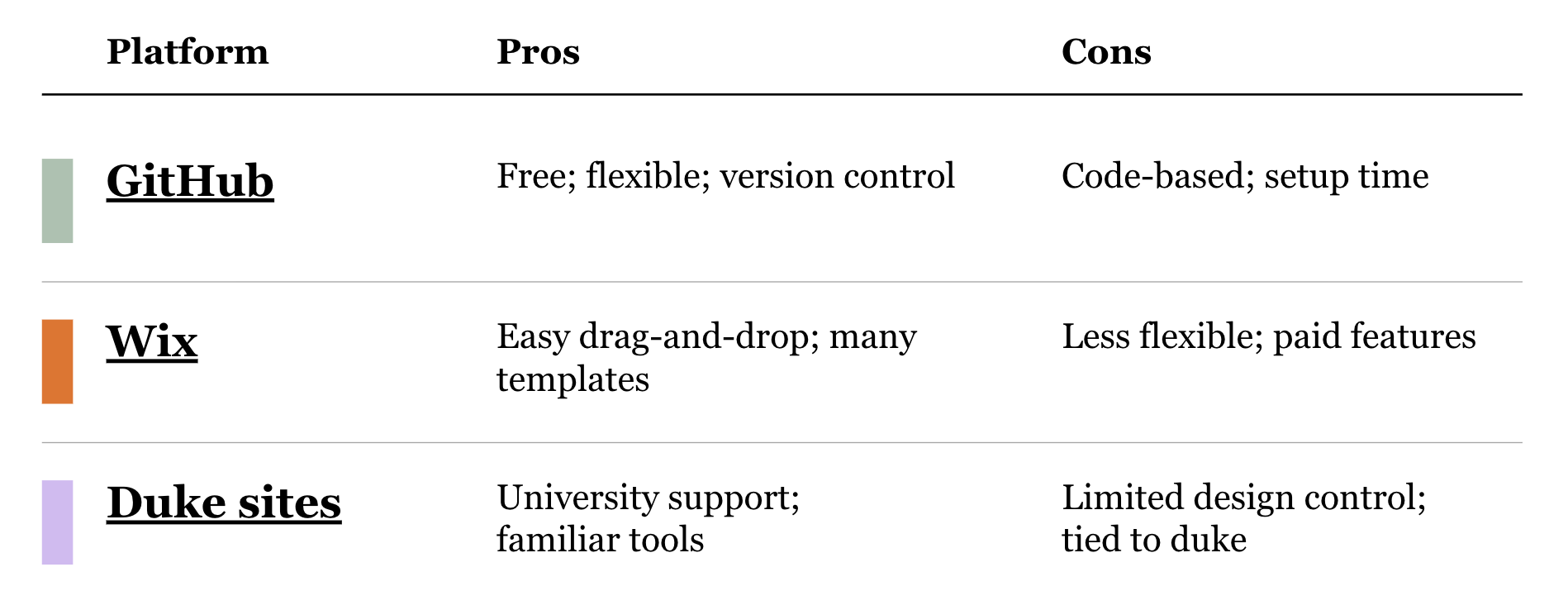
Pros and Cons of Different Platforms
Building your own website can seem intimidating at first. However, you do not need a custom domain, a design degree, or a weekend lost to create your own website. There are many different, easy-to-use platforms, like Wix. Many universities also offer their own, in-house website-building platform (Duke’s is sites.duke.edu). GitHub also allows you to host a personal website for free.
Dorsa built her website on Wix, Mike built his on sites.duke.edu, and Adani and Alissa built theirs on GitHub.
Tips for Website Building
When building your own website, here are some helpful tips to keep in mind:
- Most people will go to your website to look for 3 things: your email, your CV, or your publications. Make them easy to find!
- Build a website sustainably: the fewer things you need to keep up to date, the better. Also, get the homepage up and running before trying to add more.
- Add something memorable (like the drawing component on Adani’s website or the butterflies on Alissa’s). More people bring up the butterflies on my website than any of the content.
- Make sure your website works well on mobile devices.
- Most importantly, any website is better than no website! Your website does not need to be perfect, it just needs to be searchable.
Building a GitHub Website
The second part of this article walks you through a workshop I created for setting up a personal website on GitHub in just about 30 minutes.
While websites hosted on GitHub are code-based, you can follow the steps even if you have no idea how to code (thanks to AI). Using AI to code is called ‘Vibe Coding’, and my favorite AI coding platform is Cursor. Cursor provides 1 year of Cursor premium for free to anyone with a .edu email, and is essential to my daily workflow.
With Cursor, you should be able to set up your own publicly available platform in about 30 minutes, make changes and additions rapidly, and customize your website to an unbelievable extent.
Walkthrough
If you are unfamiliar with any of the technical jargon in this walkthrough (or just finding yourself confused or needing to troubleshoot), I highly recommend putting my instructions / the error message into ChatGPT or Claude, and asking for step-by-step instructions. AI is very good at things like this!
By the end you should have:
- A live site at
https://YOUR-USERNAME.github.io
I put together a template to make it easier to set your website up. You can find it here:
github.com/alissarivero/personal-website-template
You will click ‘use this template’, making sure to name your repo exactly YOUR-USERNAME.github.io. This is important because this will be the URL for your website (and it is extremely hard to change later). It will not work if you name it AnythingElse.github.io. Also, make sure your repository is public.
Vibe Coding
Next, you will open the Cursor app. Make sure your Cursor is linked to your GitHub account. You will then click ‘clone repository’.
I typically clone repositories to my desktop or downloads folder.
From here on, you will type commands into Cursor (in conversational language) to customize your website. I prefer to work in the IDE window (top right, the VS Code interface), but you may find it easier to work in the Agents window (more like talking to ChatGPT) if you have never coded before.
Your first step is to pick a website theme!
There are 15 different themes available. You can click through and find the one you like best here: alissarivero.github.io/personal-website-template/gallery
Once you find a theme you like, tell Cursor to “use the ___ theme”.
Next, tell Cursor to temporarily hide pages other than the homepage. I find that most people who start personal websites never publish them, because they feel it is not ready to publicly share. If you start with one publicly available page, it is much easier to add ones later on.
Next, ask Cursor to preview your website. This will show you what you need to change, and you can continually preview as you make changes to see the updates.
Command Cursor to make changes until you are satisfied with your website! Cursor will default to agent mode, which is generally great. You can click the ‘agent’ button to see the other modes — I most frequently use ‘ask’ to ask questions about the code or ‘planner’ when I want to make several large changes.
If you need to upload photos or PDFs, the Cursor agent chatbox includes an attachment button. You can also directly drag files into the folder version of your repository (likely in your desktop, downloads, or wherever you cloned your repository to).
Once you feel good about your homepage, command Cursor to “make the website publicly accessible.”
Anytime you make substantial changes to code (when you are using GitHub), you will want to tell Cursor to “commit and push”. This is incredibly important because this is what will send the changes from your laptop to your actual website. This also makes it very easy to work from multiple computers, or to go back to previous versions of your code.
Now (you may need to wait 1-2 minutes), you should have a working website! Go to your browser and search YOUR-USERNAME.github.io to see it in action.
If it is not appearing, tell Cursor and troubleshoot together.
Indexing
Just because your website is searchable by URL, it does not mean that it is indexable (i.e. findable via search engines like Google). To make it so, ask Cursor. I recommend doing this as soon as possible, because it takes a few days to weeks to appear.
Takeaways
Making a website is far easier now than ever before (thanks to AI)! You can have a working website in less than an hour.
It is relatively easy to restyle later. It is much harder to keep promising yourself you will “make a site over winter break.” Put a real URL on the internet this week, then make it nicer when a paper actually gets accepted.
Questions, corrections, or want help/advice? Feel free to reach out at alissa.rivero@duke.edu.